Table of Contents
Fixing StarCraft II "Graphics device not available" on multi-GPU setups (DXVK)
Introduction
StarCraft II is an old game by modern standards. Wings of Liberty released in 2010, back when DirectX 9 was still the default. Blizzard later added DirectX 10 and DirectX 11 render paths, but parts of the engine still behave like a DX9-era application.
I run a multi-GPU setup where Intel graphics handles most desktop work and the NVIDIA card is used for heavier applications. This is common on laptops, but less common on desktops. My main display is also plugged into the motherboard HDMI port, so Windows often treats the Intel adapter as the primary GPU.
Windows 11 is usually good at handling this, and it even provides a per-app GPU preference setting:

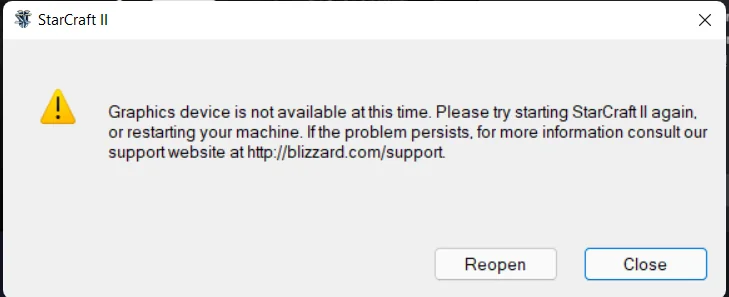
This setup works for most Blizzard games I occasionally play (Warcraft III: Reforged, Diablo II: Resurrected, and StarCraft: Remastered). StarCraft II is the odd one out: it fails at startup with a "graphics device not available" error.
I tried the usual suggestions first:
- forcing a different display mode (`-displaymode 0`)
- forcing a different renderer (`-dx11`, plus other AI-suggested launch flags)
None of them helped. At that point I remembered that the Linux gaming community has spent years building mature DirectX translation layers, and those layers often sidestep old DirectX quirks.
The Fix (DXVK)
DXVK is a translation layer that implements Direct3D 9/10/11 on top of Vulkan. It is mostly used through Wine/Proton on Linux, but you can also use it on Windows by placing the right DLL next to the game executable.
StarCraft II still relies on Direct3D 9 for compatibility, so DXVK's `d3d9.dll` was enough to get past the device initialization issue on my machine.
A quick note on DXVK
DXVK has a long history in the Linux community as a pragmatic way to make DirectX games run well. In a 2018 GamingOnLinux interview, DXVK's author Philip Rebohle described it as a mix of not wanting to dual-boot anymore, being unhappy with Wine's performance at the time, and "really wanting to get one specific game to work" (NieR:Automata was the early motivator that brought the project a lot of attention) [1].
Installation
- Download DXVK from the official GitHub repository [2].
- Extract the archive and locate d3d9.dll:
- x64\d3d9.dll for 64-bit executables
- x32\d3d9.dll for 32-bit executables
To decide which one to use, check what executable exists in your StarCraft II version folder (see the next step):
- if you see SC2_x64.exe, use x64\d3d9.dll
- if you see SC2.exe, use x32\d3d9.dll
- Copy d3d9.dll into the StarCraft II version folders. On my system that directory was:
C:\Program Files (x86)\StarCraft II\Versions\
I placed the DLL into each subfolder under Versions so whichever build Battle.net launched would pick it up.
PowerShell example (copies to all Base* folders):
$dxvkDll = "C:\path\to\dxvk\x64\d3d9.dll"  # or x32\d3d9.dll
$sc2Versions = "C:\Program Files (x86)\StarCraft II\Versions"
Get-ChildItem -Path $sc2Versions -Directory -Filter "Base*" | ForEach-Object {
   Copy-Item -Path $dxvkDll -Destination (Join-Path $_.FullName "d3d9.dll") -Force
}
- Launch the game normally from Battle.net.
To undo this change, delete the d3d9.dll files you copied into those version folders.
Conclusion
With DXVK in place, StarCraft II starts reliably on my multi-GPU setup. I also noticed smoother gameplay, although I did not benchmark it seriously. On Linux I never hit this specific error, which is why looking at the Linux ecosystem ended up being the simplest solution for Windows too.
Fediverse
Reply to this post on Mastodon
Bluesky
Reply to this post on Bluesky
No comments yet. Reply on any of the platforms below to join the discussion.